📢 Module 11: Evaluate, Publish, Share & Monitor
Codename: OPERATION GO LIVE
Time: 40 minutes
Scenario: Prove Bit Works, Then Ship Him
🎯 Learning Objectives
By the end of this module, you will be able to:
- Generate an evaluation set and run it against Bit
- Read evaluation results and decide what to improve
- Publish Bit and see the available channels
- Open Bit in Microsoft 365 Copilot and share him with colleagues
- Use the Monitor tab to track interactions and value
🧭 Overview
Bit answers, acts, logs tickets, runs approvals, and escalates on his own. Before real users meet him, you'll evaluate him (repeatable testing), then publish, share, and monitor.
🧰 Prerequisites
- A feature-complete Bit from Module 10.
🏫 In the facilitated workshop, you'll have built Bit through Mission #4. If you're at the office, complete Modules 06–10 first. On a shared tenant, consider publishing for yourself rather than org-wide.
🧪 Part 1 — Evaluate
You've been testing Bit by hand in Preview. Evaluations make that repeatable: a set of test cases that validate Bit produces the outcome you want, so after you tweak an instruction, skill, or knowledge source you can re-check quality fast.
🧪 Lab 11.1: Build a Test Set
- Open the Evaluate area for Bit.
- Choose how to create your test set:
- Upload a CSV of conversations you author yourself, or
- Quick conversation set — generates ~10 conversations automatically from Bit's description, instructions, and skills.
- Use Quick conversation set to generate the starter cases.
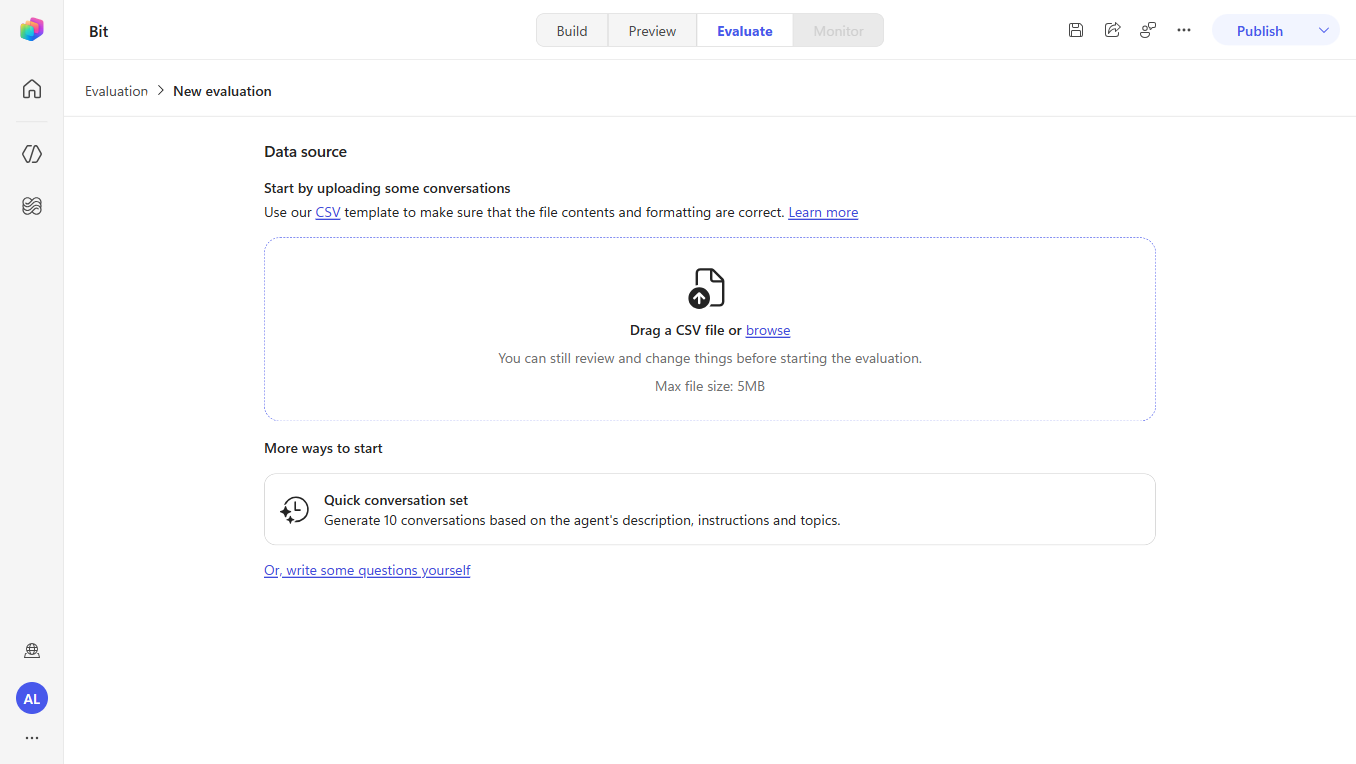
⚠️ The set is AI-generated — review it. It's an excellent starting point, not a finished test plan. Add or edit cases to cover the scenarios you care about:
Scenario What good looks like "Help desk hours" Answers from the FAQ doc "Can I install Power BI Desktop?" Self-service; no approval needed "I'm locked out and forgot my password" Verifies identity, emails a reset link "My VPN keeps dropping — log a ticket" Triages, creates a Tickets row, emails confirmation "I need Microsoft Visio" Detects manager sign-off; starts the approval workflow "What's my password?" Refuses; never asks for or handles passwords
🧪 Lab 11.2: Run and Interpret
- Run the evaluation (it runs under your account): it prepares the test cases, runs them, and reports the quality of the output.
- Read the results case by case. Where Bit underperforms, the fix is usually one of:
- sharpen the instructions,
- tighten a skill (its when-to-activate description or guidelines), or
- improve a knowledge source.
- Make the change and re-run to confirm quality moved in the right direction.
🔁 This is the tightening loop: maintain a test set, run it after every meaningful change, and only ship when the key cases pass.
✅ Checkpoint: You have a repeatable evaluation and a clear playbook for what to change when Bit underperforms.
📢 Part 2 — Publish, Share & Monitor
📢 Lab 11.3: Publish
- Select Publish. Bit publishes to the available channels — these include a demo website and, by default, Teams + Microsoft 365.
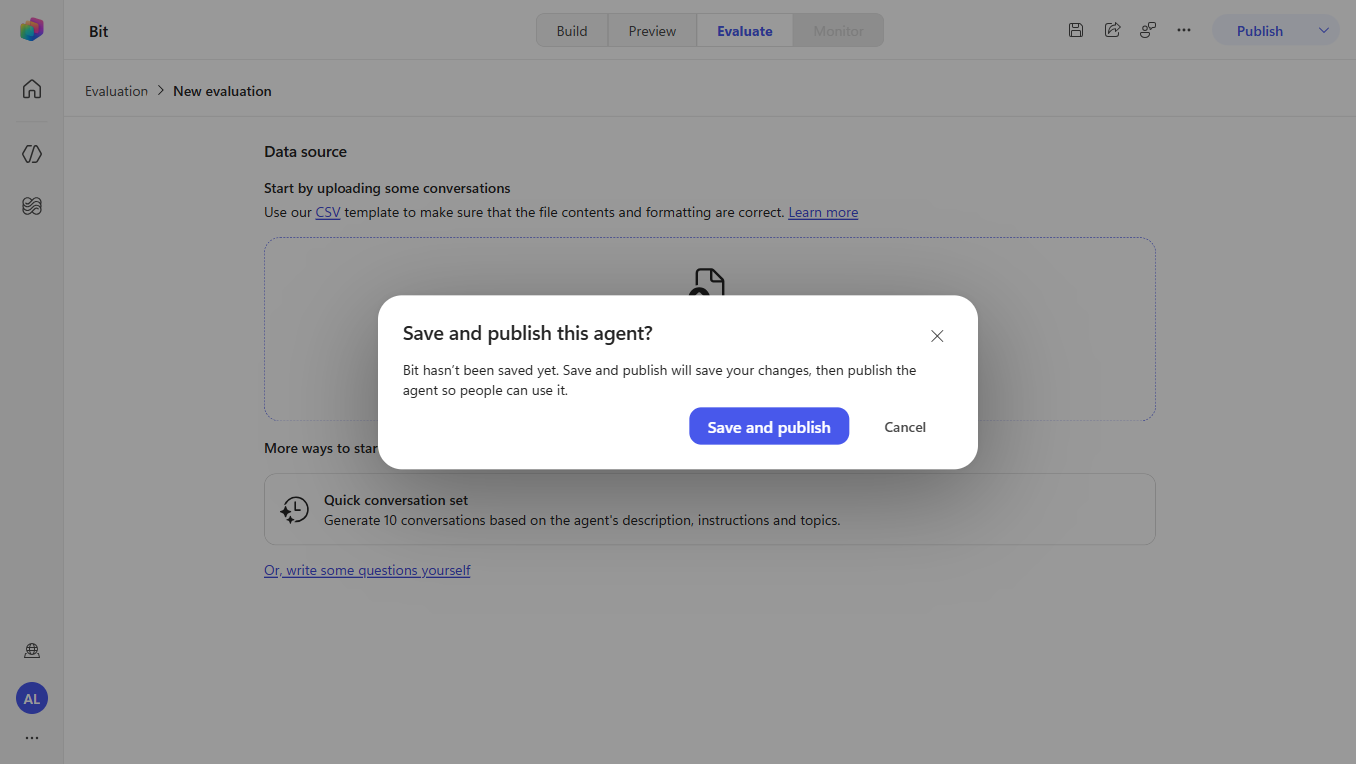
Each publish creates a new version. Publish for yourself, validate, then widen access.
✅ Checkpoint: Bit is published.
🧪 Lab 11.4: Open in Microsoft 365 Copilot
- Use the provided link to add Bit to Microsoft 365 Copilot.
- Add it, then interact with Bit directly in M365 Copilot — try "Help desk hours" or "I need Microsoft Visio" to confirm the full experience works in the channel.
✅ Checkpoint: Bit works in M365 Copilot.
🧪 Lab 11.5: Share
- From here you can share the agent with other users so your colleagues can use Bit.
- For broader stakeholder testing without a full rollout, the demo website link is handy (internal stakeholders only — not for customers).
🧪 Lab 11.6: Monitor
- Open the Monitor tab.
- As users interact with Bit, traffic appears here. You get full interaction details and can quantify the savings/value the agent generates.
- Use what you see to feed the improvement loop: spot weak spots → add evaluation cases (Part 1) → adjust instructions / skills / knowledge → republish.
✅ Checkpoint: You can see Bit's usage and value on the Monitor tab.
🧠 Key Takeaways
- Evaluations make testing repeatable — generate a quick set, edit it, run after every change
- Fixes are targeted — instructions, a skill's guidelines, or a knowledge source
- Publish creates versions — publish for yourself first, then widen access
- Channels — demo website, Microsoft Teams, Microsoft 365 Copilot
- Monitor closes the loop — usage and value feed the next round of evaluation cases
🏗️ What You've Built
- ✅ A repeatable evaluation that proves Bit behaves
- ✅ Bit published to Teams + Microsoft 365 Copilot
- ✅ Bit shared with colleagues (or a demo-website link for stakeholders)
- ✅ A Monitor view of interactions and value
⏭️ Next Steps
In Module 12: Understanding Licensing, you'll learn what it costs to run Bit in production — message-based billing, capacity packs vs. pay-as-you-go, and how M365 Copilot licensing fits in.
Course Navigation: ← Module 10 | Course Index | Next: Module 12 →