🧩 Module 05: Using Pre-Built Agents
Codename: OPERATION HEAD START
Time: 20 minutes
Scenario: Agent Templates and Starting Points
🎯 Learning Objectives
By the end of this module, you will be able to:
- Browse the Copilot Studio agent template gallery
- Identify common agent templates and their use cases
- Create an agent from a template
- Customize a template-based agent for your organization
- Decide when to use a template vs. build from scratch
🧭 Overview
You don't always need to build an agent from scratch. Copilot Studio provides pre-built agent templates that give you a head start on common scenarios like IT helpdesk, HR support, and sales qualification.
In this module — the workshop's "Your First Agent" opener — you'll explore the template gallery, create a quick agent from a template, and customize it. This is your fast hands-on win before you build Bit properly from scratch in Module 06.
🧭 This is a quick first agent, not Bit. The template agent here is a throwaway to get your hands dirty. You'll build Bit, your Contoso IT help desk buddy — the agent this course centers on — from a blank canvas in Module 06. Keep this template agent around as a reference.
🧰 Prerequisites
- A Copilot Studio environment in the new experience (from Module 00).
- For the customization step: the IT Help Desk SharePoint site with the Contoso IT FAQ (Module 00).
🏫 In the facilitated workshop, this is your first hands-on lab — your environment and SharePoint site are already provisioned, so you can start right here. If you're following along at the office, complete Module 00 first.
🧩 What Are Agent Templates?
Agent templates are pre-configured agents built by Microsoft and the community. They typically include:
- Pre-written instructions — identity and guidance optimized for a scenario
- Suggested skills — reusable behaviors for common tasks
- Knowledge placeholders — spots for your data (you'll replace these)
- Suggested tools — connectors relevant to the scenario
- Starter prompts — example questions users can ask
Templates save time by providing a proven structure you can adapt to your needs.
📚 Common Agent Templates
As of June 2026, Copilot Studio offers templates including:
| Template | Use Case |
|---|---|
| Website Q&A | Answer questions from a website or knowledge base |
| Benefits | Leave policies, benefits, onboarding |
| Citizen Services | Public-sector citizen information and services |
| Financial Insights | Financial document Q&A for finance teams |
| Safe Travels | Travel FAQs and health/safety guidelines |
| Weather | Weather forecasts and related queries |
Note: Microsoft regularly adds new templates. The gallery you see may include additional or differently-named templates than those listed here.
🧪 Lab 5.1: Browse the Template Gallery
Objective: Explore available agent templates and understand what each one offers.
Step 1: Navigate to the Template Gallery
- Go to https://copilotstudio.microsoft.com
- Sign in with your M365 account (confirm you're in the new experience)
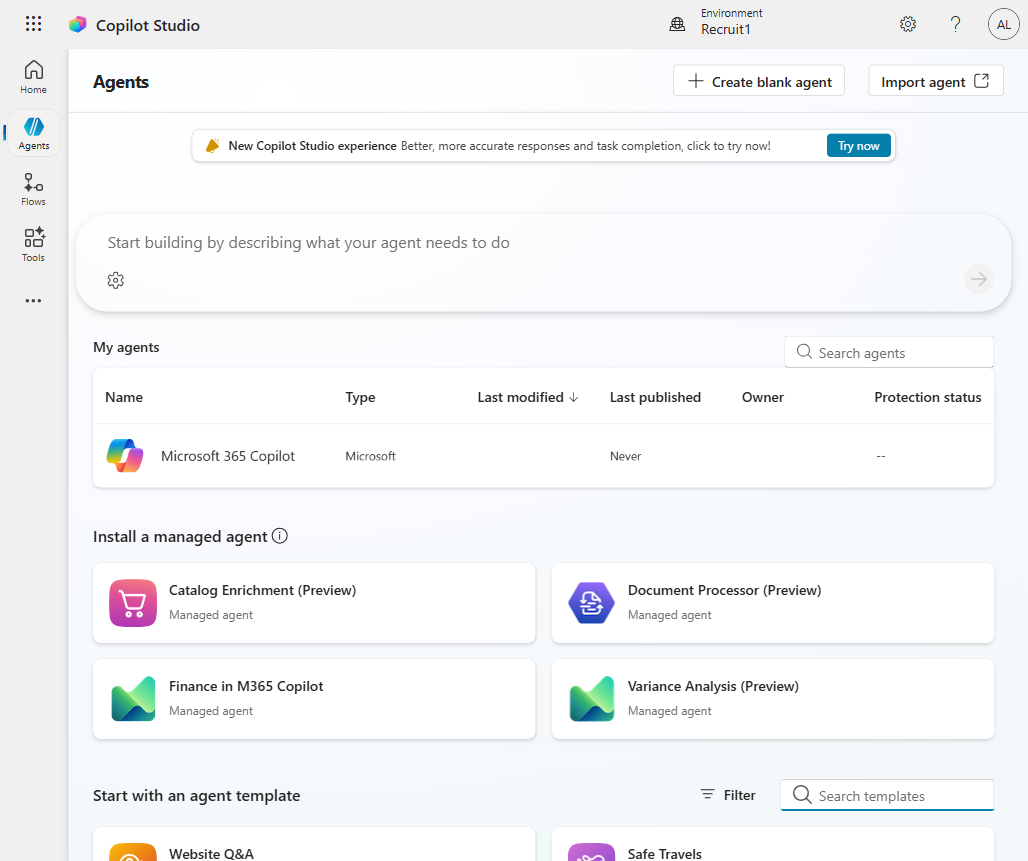
- In the left navigation, select Agents. Scroll down past "My agents" to find the "Start with an agent template" section with template cards.
Step 2: Explore Template Details
- Browse the available templates
- Select a template card (e.g., Website Q&A or another template that interests you)
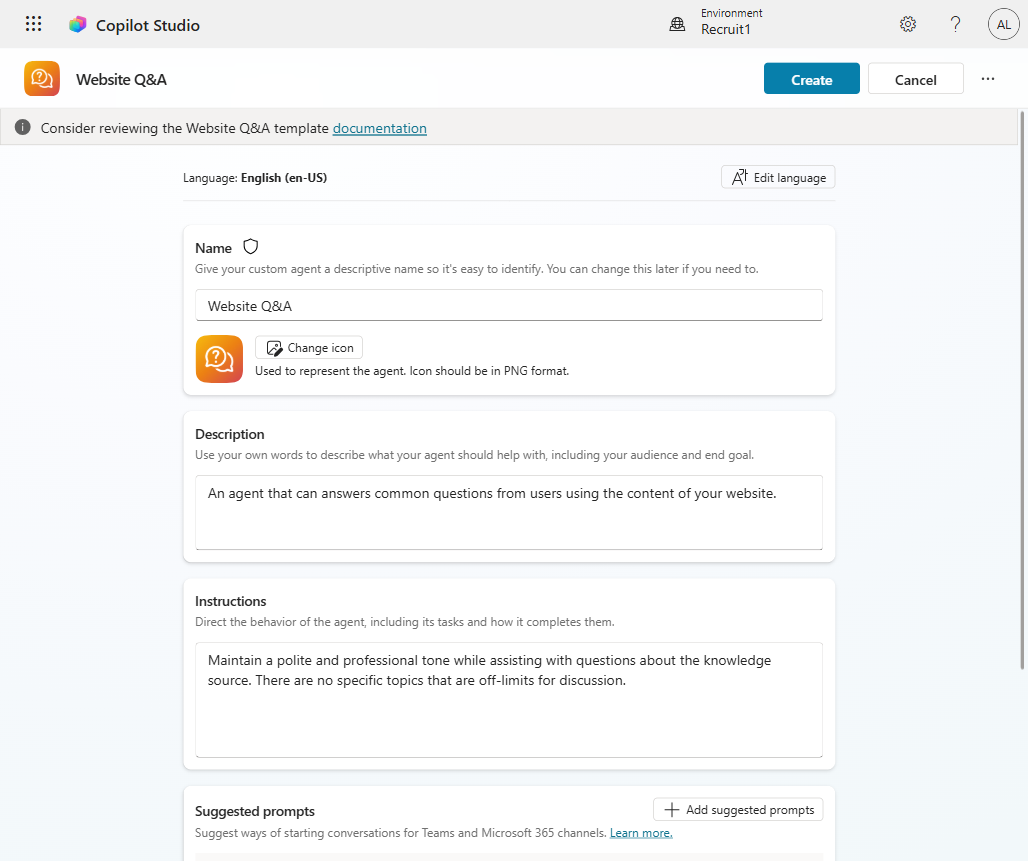
- You'll see a configuration screen with a name, description, instructions, and suggested prompts
- Select Cancel to return to the gallery
Step 3: Compare Templates
Explore at least two or three templates (e.g., Website Q&A, Benefits, Citizen Services).
Reflection questions:
- How do the instructions differ between templates?
- What skills or starter prompts are included by default?
- Are there any suggested knowledge sources or tools?
✅ Checkpoint: You've explored the template gallery and understand what each template provides.
🧪 Lab 5.2: Create an Agent from a Template
Objective: Create an agent using the Website Q&A template and see what it includes.
Step 1: Select the Website Q&A Template
- In the template gallery, locate the Website Q&A template
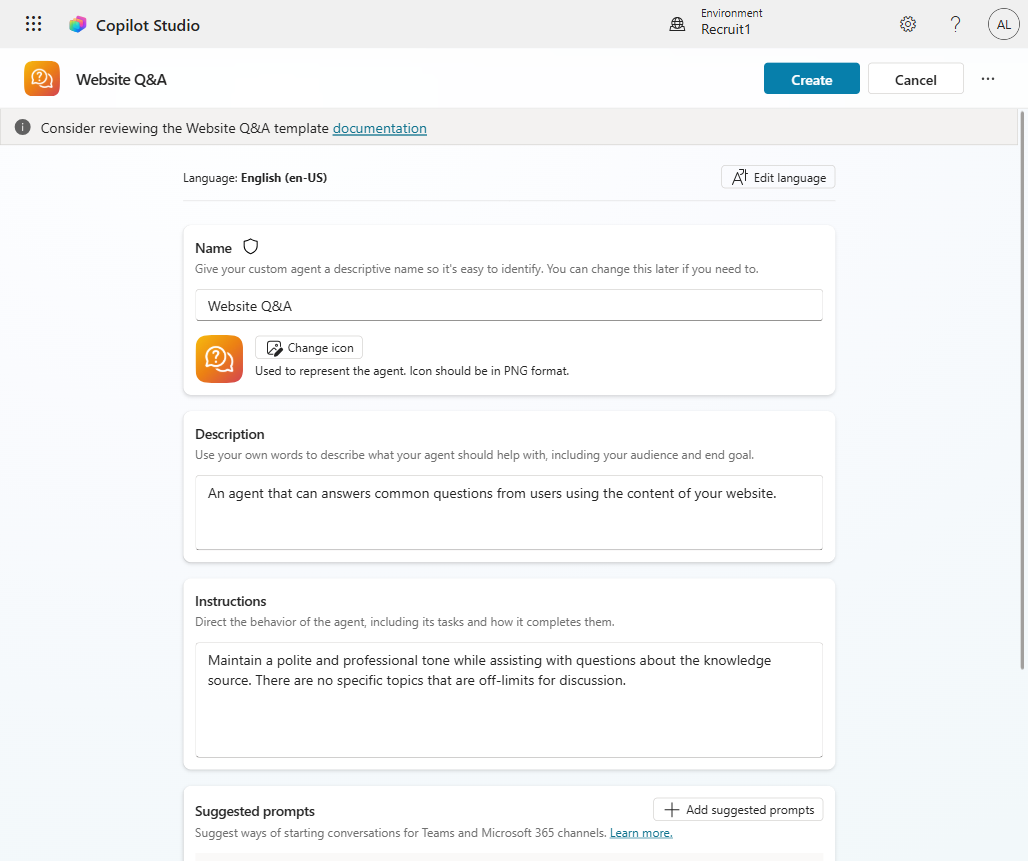
- Select the template card — you'll see the configuration screen with a Create button at the top
- Optionally update the Agent name (
Website Q&A Template Demoor leave the default) and Language
Step 2: Create the Agent
- Select Create and wait while Copilot Studio provisions the agent (~30 seconds)
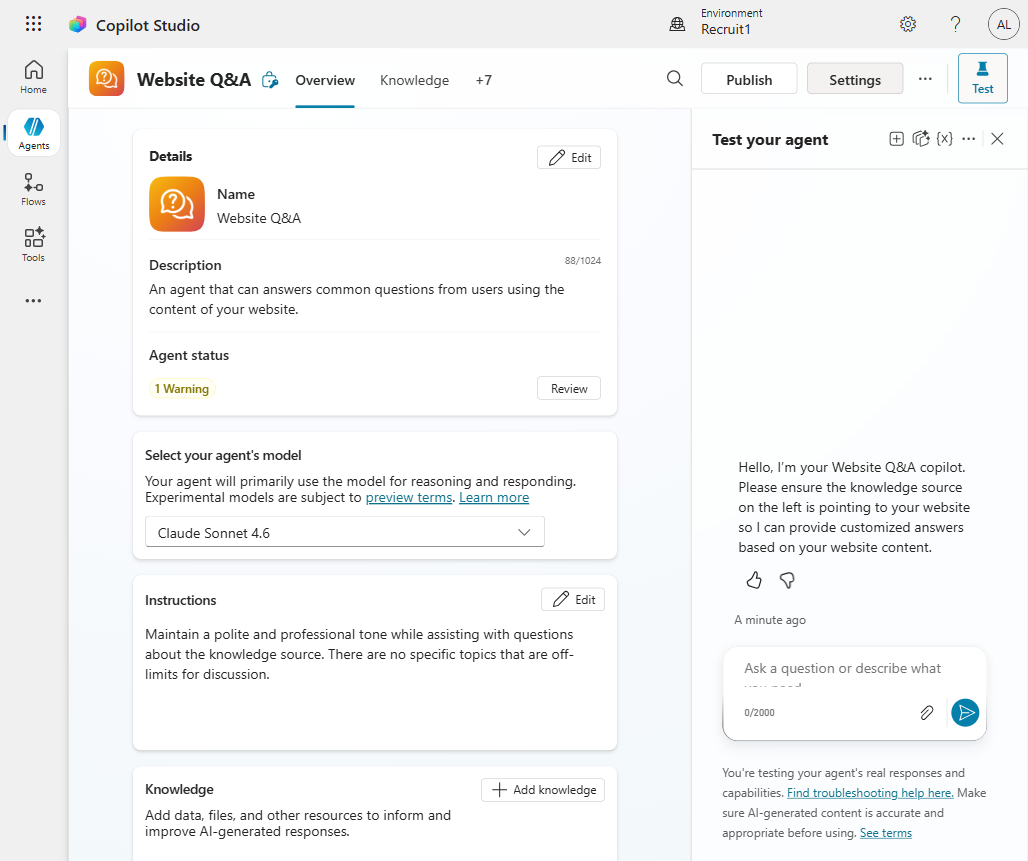
- You land on the Overview (Build) page for the new agent
✅ Checkpoint: You've created an agent from the Website Q&A template.
Step 3: Review What the Template Includes
Explore the new agent's Build page blocks:
a. Instructions
Read the pre-written Instructions. Notice:
- Clear role definition — "Maintain a polite and professional tone while assisting with questions about the knowledge source…"
- Scope — broad by default; you'll tighten this when customizing
- Tone guidance — professional, helpful, no off-limits topics by default
Tip: Save this pattern — you'll write similar instructions for Bit in Module 06.
b. Topics and Suggested Prompts
Scroll down on the Build page. You'll see a Topics section (system topics like Greeting, Goodbye, Start Over) and a Suggested prompts section where you can add example questions for users.
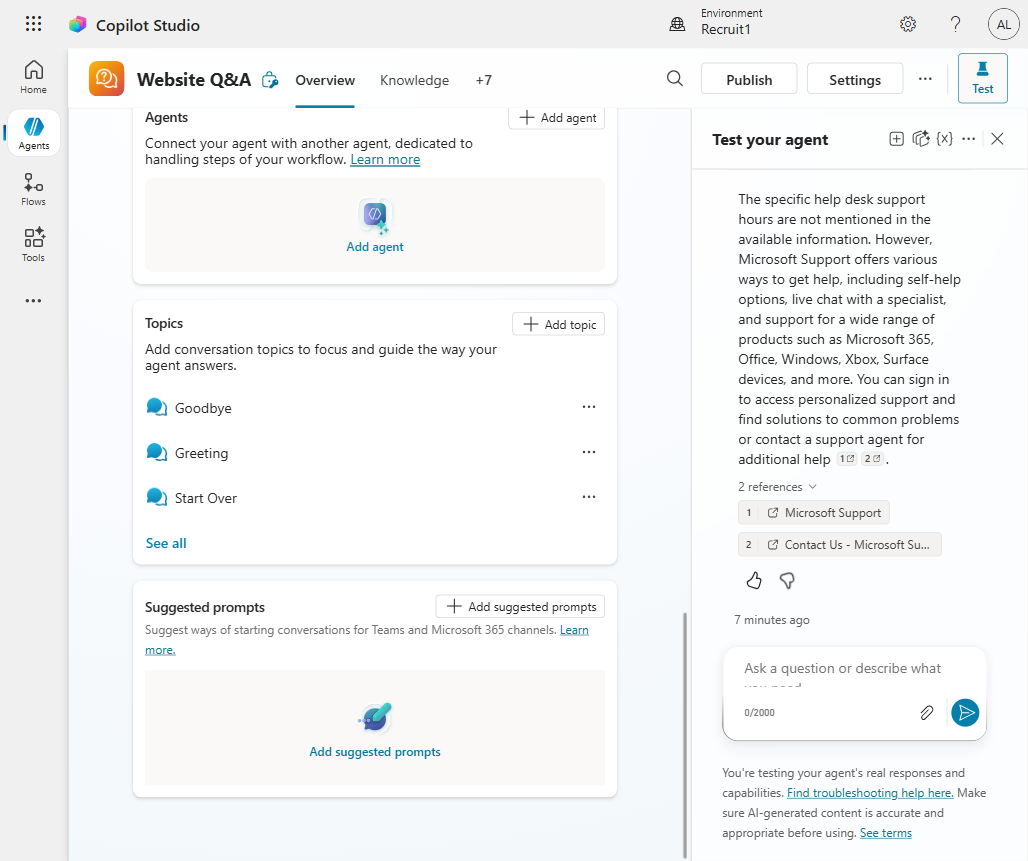
c. Knowledge
In the Knowledge block you'll see a pre-configured Microsoft knowledge source. Templates include a starter knowledge source — you replace it with your organization's data (next lab).
d. Tools
In the Tools block you'll see a Work IQ toggle (M365 organizational data) and space to add connectors. Templates leave tools mostly blank — you connect your systems.
✅ Checkpoint: You've reviewed the template agent's instructions, topics, knowledge, and tools.
🧪 Lab 5.3: Customize the Template Agent
Objective: Adapt the template to Contoso by adding the IT Help Desk SharePoint site as a knowledge source.
Step 1: Add the IT Help Desk SharePoint Site
On the Build page, scroll to the Knowledge block
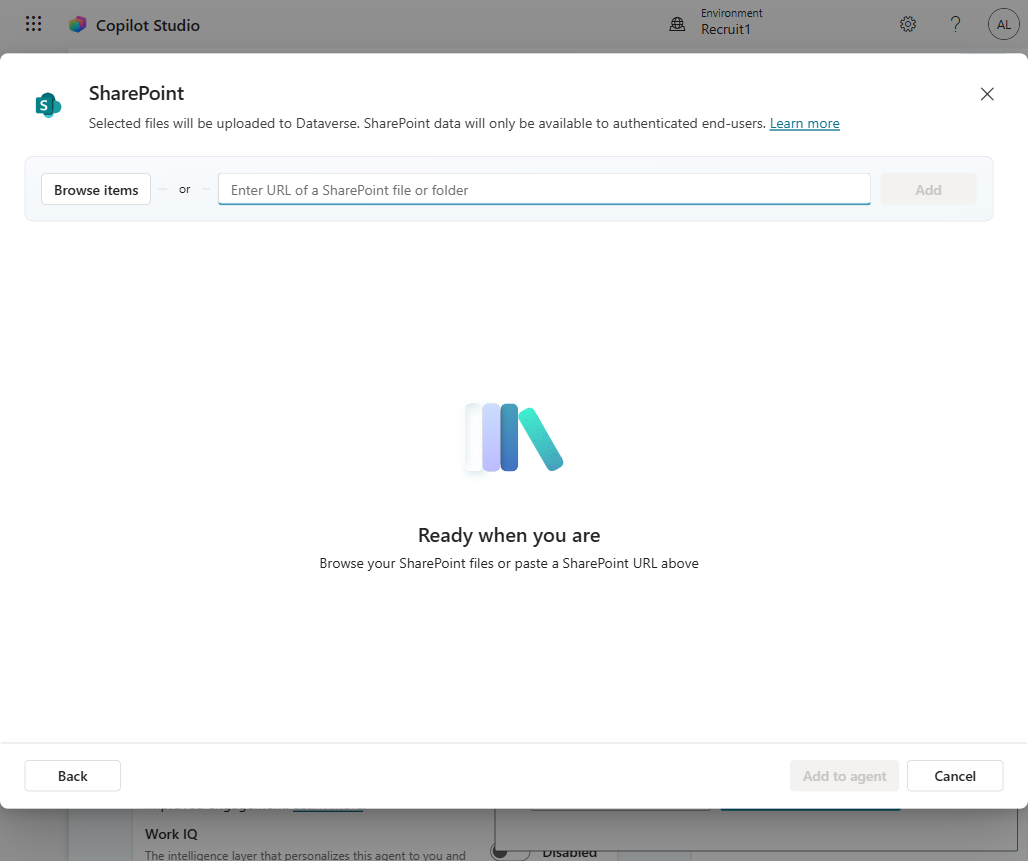
Select + Add knowledge — the Add knowledge dialog opens showing connectors (SharePoint, Public websites, Dataverse, and more)
Select SharePoint — you'll see a URL entry field
Enter the URL of your IT Help Desk site:
texthttps://[yourtenant].sharepoint.com/sites/ITHelpDeskSelect Add to agent
✅ Checkpoint: The agent can now search the IT Help Desk SharePoint site.
Step 2: Test the Agent
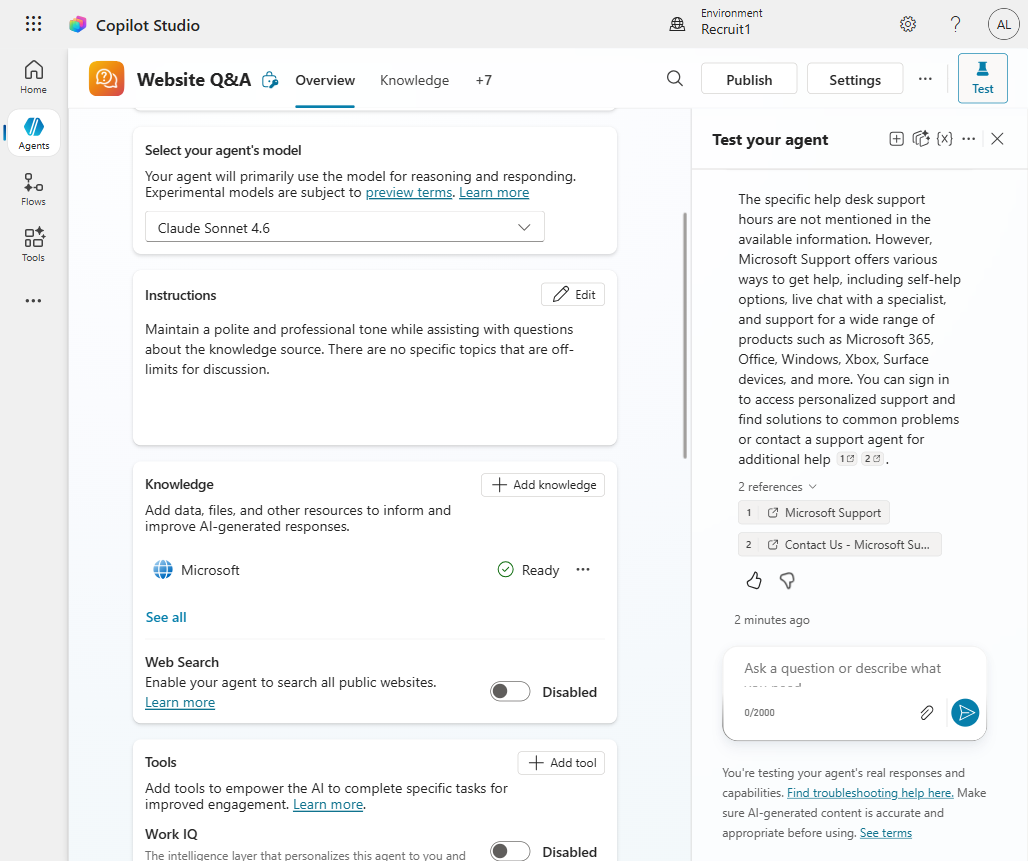
In the Test your agent pane (right side), type:
textWhat are the help desk hours?Press Enter
The agent searches its knowledge source and returns an answer with numbered source citations (e.g.,
1↗ Microsoft Support). Once you've added the Contoso IT FAQ as knowledge, the citations will point to your SharePoint content instead.
✅ Checkpoint: The template agent responds and cites its knowledge source.
Step 3: Customize the Instructions
- Open the Instructions block and select Edit
- Modify the instructions to reference Contoso:text
You are an IT Help Desk assistant for Contoso. You help employees with common IT issues. Be polite, concise, and professional. You can help with: - Password resets - VPN and connectivity troubleshooting - Software installation requests Always search the Contoso knowledge first. If an issue needs admin access, log a ticket and hand it to the help desk team. - Select Save
✅ Checkpoint: The agent's instructions now reference your organization.
🤔 When to Use a Template vs. Build from Scratch
| Scenario | Recommendation |
|---|---|
| Common use case (IT helpdesk, HR, customer service) | Start with a template |
| Unique workflow (custom business process) | Build from scratch |
| Learning agent authoring | Try both — templates teach patterns, scratch teaches fundamentals |
| Tight deadline | Use a template and customize |
| Need complete control | Build from scratch |
Best practice: Even if you build from scratch, review templates for inspiration — they show you how to write effective instructions, structure knowledge, and pick good starter prompts.
🎨 Customizing Templates: What to Change
| Component | What to Customize |
|---|---|
| Instructions | Replace the generic company name with yours; add specific guidance |
| Knowledge | Add your SharePoint sites, documents, knowledge bases |
| Skills | Add/adjust skills to match your processes |
| Tools | Connect to your systems (ticketing, email, HR) |
| Channels | Publish to your Teams, website, or M365 Copilot |
| Branding | Update the agent name, description, icon |
📌 For This Course: Keep It, but Build Bit Fresh
After creating the Website Q&A Template Demo, you have two paths:
- Keep and customize the template, or
- Use it as a reference and build fresh.
For this course, build fresh. Keep the template agent in your environment (don't delete it), and in Module 06 build Bit from a blank canvas. You get both: the learning value of building from scratch and a template to reference.
🧠 Key Takeaways
- Templates provide pre-built agents for common scenarios (IT, HR, sales, etc.)
- Included: instructions, suggested skills, knowledge placeholders, suggested tools, starter prompts
- Not included: your organization's specific knowledge — you add that
- Customization is required — templates are starting points, not finished products
- Use templates to learn — even if you build from scratch, they teach best practices
🎓 What You've Learned
You now know how to:
- Browse the Copilot Studio template gallery
- Create an agent from a template
- Customize it by adding knowledge and editing instructions
- Decide when to use a template vs. build from scratch
⏭️ Next Steps
In Module 06: Build the Contoso Helpdesk Agent, you'll create Bit from a blank canvas — defining his instructions, grounding him with knowledge, and turning on memory. It's the heart of the course and the foundation for everything that follows.
Everything from Modules 01–05 comes together as you build Bit.
Course Navigation: ← Module 04 | Course Index | Next: Module 06 →