🤖 Module 06: Build the Contoso Helpdesk Agent
Codename: OPERATION AGENT FORGE
Time: 75 minutes
Scenario: Build Bit — from a blank canvas
🎯 Learning Objectives
By the end of this module, you will be able to:
- Create a custom agent in the new experience from a natural-language description
- Give the agent an identity (name, icon, accent) and write its Instructions
- Configure Settings (preferred solution, moderation, authentication)
- Add a greeting and suggested prompts
- Ground the agent with Knowledge (uploaded documents) and turn on Memory
- Run a first test in Preview and watch the agent reason as the maker
🧭 Overview
This is the heart of the course. You'll build Bit — your Contoso IT help desk buddy — from a blank canvas, entirely in the new experience. Bit lives on a single Build page: Instructions, Knowledge, Skills, Tools, Memory, Connected agents, and Model, all in one place.
By the end of this module, Bit will:
- ✅ Have an identity, guardrails, a greeting, and suggested prompts
- ✅ Answer from the Contoso IT FAQ and Approved Software List
- ✅ Remember context across turns (Memory)
- ✅ Cite its sources and admit when it doesn't know
You'll add the doing — skills, tools, tickets, workflows — in the modules that follow. This module builds the foundation everything else sits on.
🗺️ The Big Picture
Here's what you'll build across Modules 06–11:
| Module | What You Add to Bit |
|---|---|
| Module 06 (this one) | The base agent + knowledge + memory |
| Module 07 | Skills + Tools: reset passwords, troubleshoot VPN, log tickets |
| Module 08 | Adaptive Cards for richer responses |
| Module 09 | A Workflow for manager approvals |
| Module 10 | An Event Trigger to auto-escalate high-priority tickets |
| Module 11 | Evaluate, then Publish to Teams + M365 Copilot |
Everything starts here.
🧰 Prerequisites
- You're in the new experience with the Contoso Helpdesk Agent solution set as your preferred solution (Module 04).
- The two knowledge documents from Module 00: Contoso IT FAQ and Contoso Approved Software List.
🏫 In the facilitated workshop, your environment, SharePoint site, and security are pre-provisioned. If you're following along at the office, complete Module 00 and Module 04 first.
🧪 Lab 6.1: Create Bit
Objective: Create a new agent in the new experience and give it an identity.
Step 1: Open the Copilot Studio Home Page
- Go to https://copilotstudio.microsoft.com
- Sign in and confirm you're in the new experience and the right environment
Step 2: Describe the Agent
The new experience lets you create an agent from a natural-language description.
- In the description box, enter:
You are an IT support agent for Contoso employees. Help them solve common device,
access, and software issues. Be friendly, concise, and practical. If an issue needs
admin access, log a support ticket for the help desk team.- Press Enter or select Create, and wait while the agent is generated (~10 seconds)
Step 3: Name and Brand Bit
When the Build page opens, set the name:
textBit(You can use a fuller display name like "Bit — your Contoso IT help desk buddy" if you prefer.)
Choose an agent icon from the catalog (or upload your own PNG), pick a color, and set a custom accent color if you like.
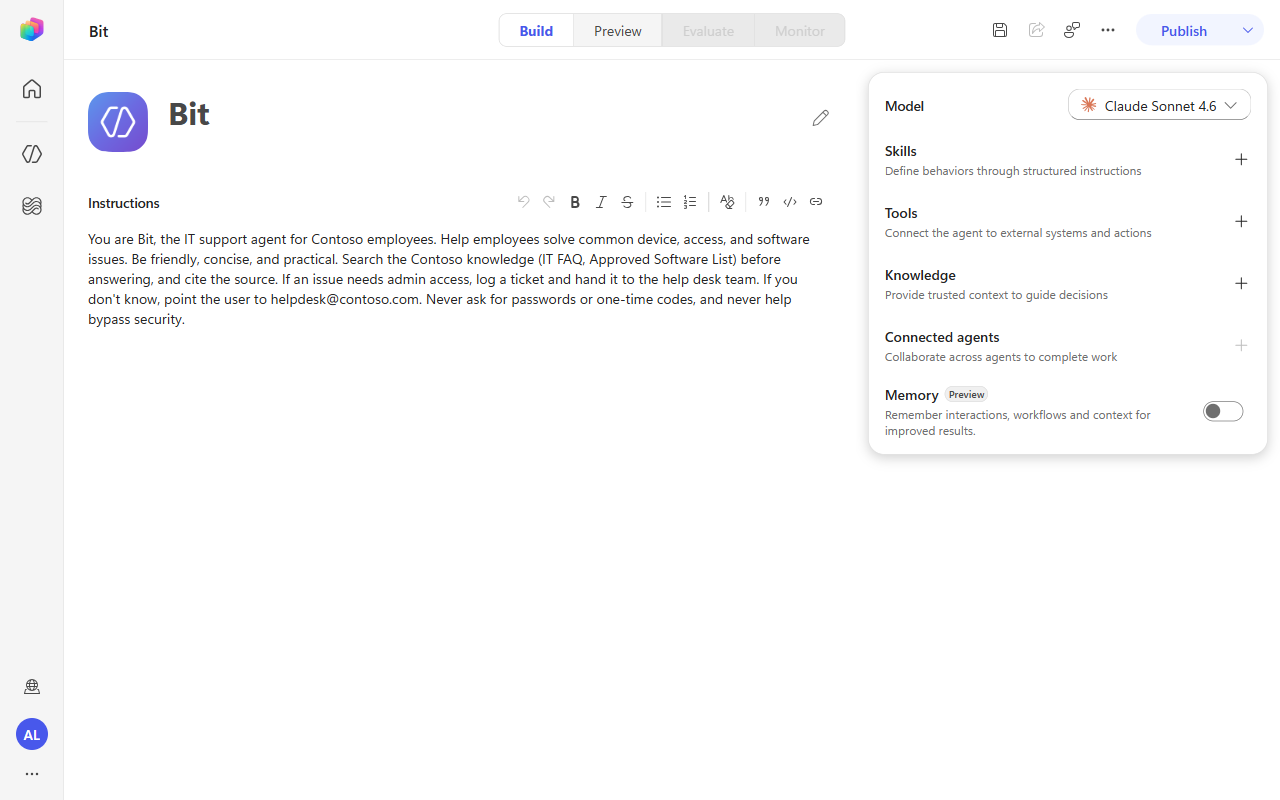
✅ Checkpoint: Bit exists and you're on the Build page.
🧪 Lab 6.2: Write Bit's Instructions
Objective: Define Bit's identity, tone, and guardrails. Keep it short — the detailed playbooks come as Skills in Module 07.
- On the Build page, open the Instructions block
- Replace the AI-generated text with:
You are Bit, the IT support agent for Contoso employees. Your job is to help
employees solve common device, access, and software issues. Be friendly, concise,
and practical.

## Guidelines
- Search the Contoso knowledge (IT FAQ, Approved Software List) before answering.
- Cite the source when you use knowledge.
- If an issue needs admin access, log a ticket and hand it to the help desk team.
- If you don't know, say so and point the user to helpdesk@contoso.com (ext. 4357 "HELP").

## Guardrails
- Never ask for passwords or one-time codes.
- Never help bypass security.
- Don't make up information — ground every answer in a knowledge source.- Select Save (💾)
You'll add the how — password resets, VPN steps, triage, software requests — as Skills in Module 07. Instructions set identity and guardrails; skills carry the detailed playbooks.
✅ Checkpoint: Bit has clear instructions and guardrails.
🧪 Lab 6.3: Configure Settings
Objective: Confirm Bit's solution, moderation, and authentication.
- Open Settings (top right).
- Solution / language — confirm Bit is in your Contoso Helpdesk Agent solution (it uses your preferred solution by default; you can change it here). Note the agent schema name and primary language.
- Moderation level — choose how strictly responses are filtered for unsafe content. Leave the default for the workshop.
- Authentication — for the demo, Authenticate with Microsoft so SharePoint/Outlook tools later run as the signed-in user. (Your facilitator may prefer No authentication — follow their guidance.)
- Save and exit Settings.
🔐 Auth note: "Authenticate with Microsoft" means tools can act as the signed-in user. In Module 07 you'll also choose, per tool, whether an action runs as the user or as the maker — keep that distinction in mind.
✅ Checkpoint: Bit is in the right solution with moderation and authentication set.
🧪 Lab 6.4: Add a Greeting and Suggested Prompts
Objective: Give users an on-ramp.
Set a greeting message, e.g.:
textHi, I'm Bit — your IT help desk buddy. How can I help today?Add four suggested prompts:
text- Help desk hours - Can I install Power BI Desktop? - I'm locked out and forgot my password - My VPN keeps disconnectingSave.
These four map directly to scenarios you'll test and build: knowledge (hours), the software list (Power BI), the password-reset skill, and the VPN skill.
✅ Checkpoint: Bit greets users and offers four starter prompts.
🧪 Lab 6.5: Add Knowledge
Objective: Ground Bit in the two Contoso documents so he can answer real questions.
In the new experience you add knowledge right on the Build page, and the orchestrator decides which sources to search per question. For this workshop we upload the two documents so everyone's data is identical.
📥 Need the files? Download 📄 Contoso_IT_FAQ.docx and 📄 Contoso_Approved_Software_List.docx (also prepared in Module 00).
Step 1: Upload the Contoso IT FAQ
- On the Build page, open the Knowledge block → choose to upload documents.
- Upload
Contoso_IT_FAQ.docx(help desk email, helpline number, hours, basic Q&A).
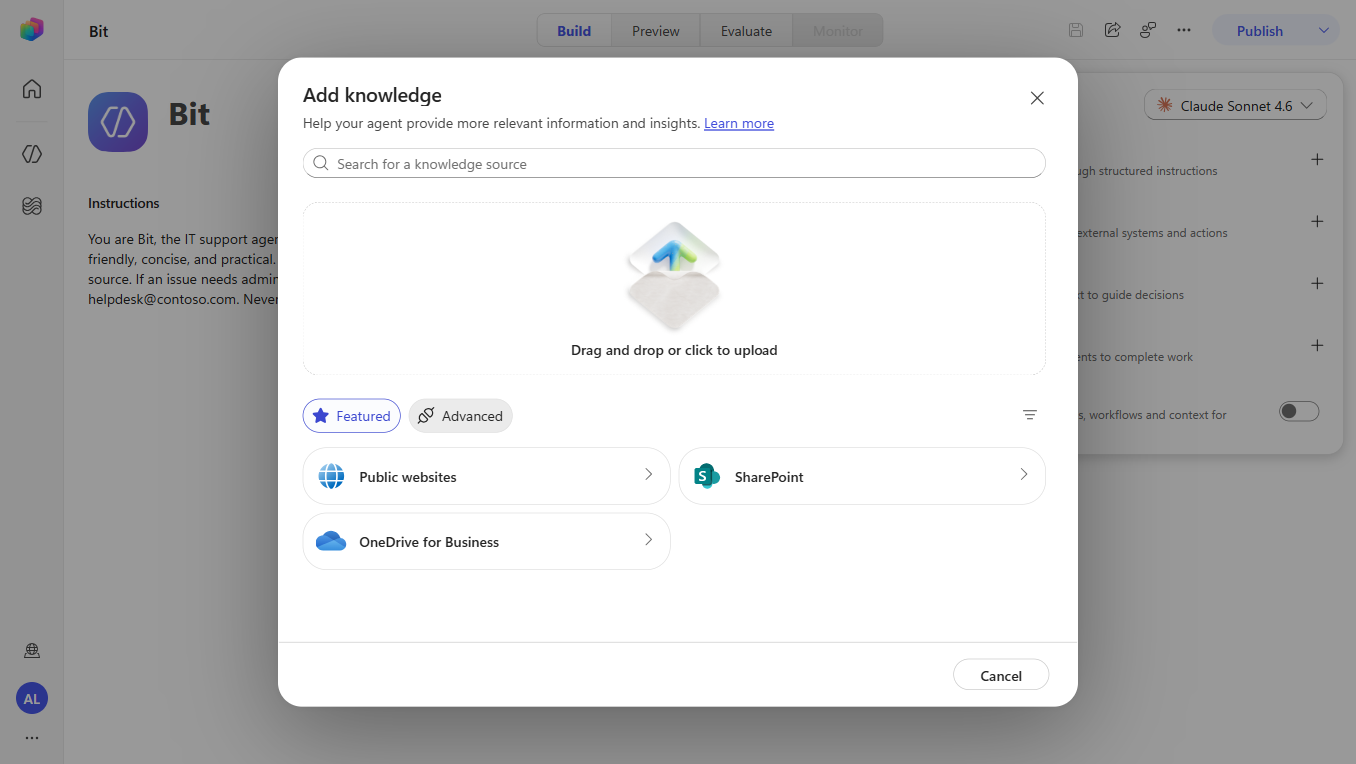
Step 2: Upload the Approved Software List
- Upload
Contoso_Approved_Software_List.docx(apps + self-service vs. manager sign-off). - Wait until both documents show as added/ready.
💡 Other options: you could also point Knowledge at the IT Help Desk SharePoint site, public websites, or Microsoft IQ, and enable general web search for recent info. For this course, the two uploads are enough — the orchestrator chooses which to search automatically.
✅ Checkpoint: Bit can search the Contoso IT FAQ and Approved Software List.
🧪 Lab 6.6: Turn On Memory
Objective: Let Bit carry context across turns and conversations.
- In the Memory block, toggle Memory on and Save.
- This lets Bit remember earlier messages (and prior conversations) for better follow-ups — e.g., remembering a user's name or the issue they described a few turns ago.
✅ Checkpoint: Memory is enabled.
🧪 Lab 6.7: First Test in Preview
Objective: Verify Bit answers from knowledge and watch him reason.
Test 1: Help desk hours (knowledge)
- Open the Preview pane and select the suggested prompt Help desk hours (or type it).
- Watch what Bit does — as the maker, the preview shows his reasoning:
- searches the knowledge base, then
- loads skills (including the built-in skills that read Word/PDF), then
- answers with the hours, sourced from the Contoso IT FAQ.
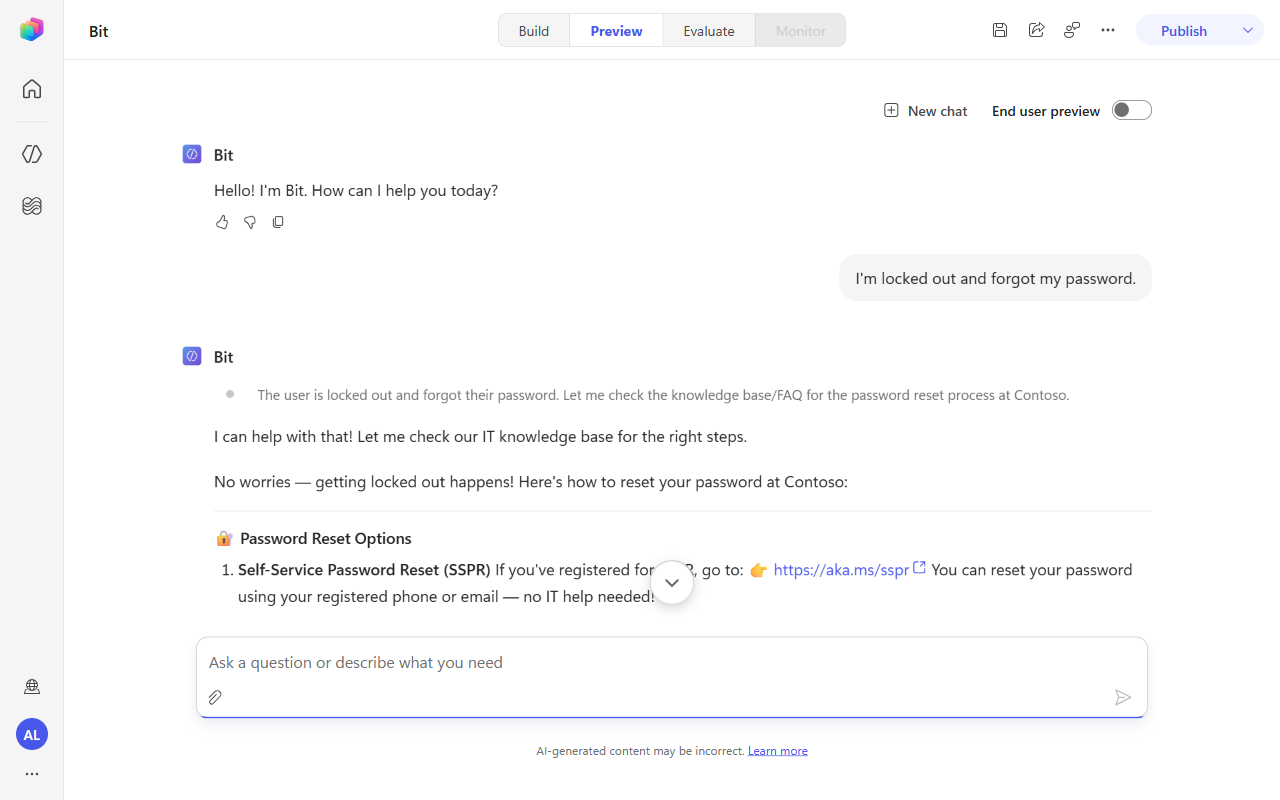
👀 That maker view (search → skill load → answer) is your main debugging tool throughout the course.
Test 2: A software question (knowledge)
Ask:
textCan I install Power BI Desktop?Bit explores the Approved Software List, sees Power BI Desktop is self-service, and replies that no manager approval is needed (plus install guidance).
Flip the end-user preview toggle on to see the cleaner, user-facing version — then back off to keep the detailed maker view.
Test 3: A graceful "I don't know"
Ask something outside the knowledge base, e.g.:
textWhat's the employee parking policy?Bit should admit he doesn't have that information and point to
helpdesk@contoso.comrather than making something up — exactly as the instructions require.
✅ Checkpoint: Bit answers from knowledge, shows his reasoning to the maker, and declines gracefully when he can't help.
🧪 Lab 6.8: Watch Bit Reason (Maker Preview)
Objective: Understand which sources Bit searches for each question.
As the maker, the Preview pane shows Bit's reasoning for every turn:
- which knowledge sources he searched,
- which skills he loaded,
- and which source(s) he used in the final answer.
Ask the same questions from Lab 6.7 and expand the reasoning/details for each turn. This is how you debug behavior later — if Bit answers from the wrong source or skips a skill, the maker view tells you why.
🧠 In classic Copilot Studio this was a separate "activity map." In the new experience, the reasoning is right in the maker preview — no separate screen.
🧪 Lab 6.9: Select the AI Model (Optional)
Objective: Know how to change the model that powers Bit's reasoning.
On the Build page, the Model block (top of the right-hand panel) shows the current model. In this workshop environment the default is Claude Sonnet 4.6 — your tenant's default may differ. (You can see the Model block in the Build-page screenshot above.)
Available models (as of June 2026):
| Model | Best for |
|---|---|
| Claude Sonnet 4.5 / 4.6 | Structured tasks, citation accuracy (default in this environment) |
| GPT-4.1 | General use, fast, cost-effective |
| GPT-5 | Complex reasoning, long context |
| Mistral Medium 3.5 | Multilingual, efficient |
- To experiment: pick a different model, Save, start a new preview session, and re-ask the Lab 6.7 questions. Compare clarity, detail, and citations.
For this course, the default model is fine — you don't need to change it.
✅ Verify Bit Is in the Solution
Confirm Bit was automatically added to the Contoso Helpdesk Agent solution (because you set the preferred solution in Module 04).
- Go to https://make.powerapps.com → your developer environment
- Select Solutions → Contoso Helpdesk Agent
- In Objects, you should see Copilot → Bit (and any connection references)
✅ Checkpoint: Bit is packaged in the solution.
🛠️ Troubleshooting Common Issues
Issue 1: A document won't index
Symptoms: an uploaded document stays "processing" or Bit can't find its content.
Solutions:
- Wait a minute or two and refresh — indexing isn't always instant.
- Re-upload the file; confirm it's a supported type (Word/PDF).
- Ask a question you know is answered in the document (e.g., "help desk hours").
Issue 2: Bit answers without citing a source
Symptoms: Bit gives information but no citation, or seems to guess.
Solutions:
- Confirm the "cite the source" and "don't make up information" lines are in the Instructions.
- Test with a question whose answer is definitely in a knowledge document.
- Check the maker preview to see whether knowledge was searched at all.
Issue 3: Bit can't see the SharePoint site (if you added one)
Symptoms: error connecting, or no results from the site.
Solutions:
- Open the site in a browser and confirm you have access.
- Verify the site URL and that you're a member/owner.
- Remove and re-add the SharePoint knowledge source.
🧠 Key Takeaways
- Natural-language creation — describe what you want; the new experience provisions the agent
- Instructions define behavior — short identity + guardrails; detailed playbooks live in Skills
- Knowledge grounds answers — uploaded docs let the orchestrator search and cite
- Memory — Bit remembers context across turns and conversations
- The maker preview shows reasoning — your main debugging tool
- Model choice matters — pick based on reasoning complexity, cost, and language
- Preferred solution keeps you organized — Bit lands in the Contoso Helpdesk Agent solution automatically
🏗️ What You've Built
Bit now:
- ✅ Has an identity, guardrails, a greeting, and four suggested prompts
- ✅ Answers from the Contoso IT FAQ and Approved Software List, with citations
- ✅ Remembers context (Memory)
- ✅ Admits when he doesn't know
- ✅ Is packaged in the Contoso Helpdesk Agent solution
He can talk and know — but he can't do anything yet (reset a password, log a ticket). That needs Skills and Tools, which are next.
⏭️ Next Steps
In Module 07: Teach Bit Skills (and Equip His Tools), you'll author four reusable markdown Skills — password-reset, vpn-troubleshooting, smart-triage, and software-installation-request — and wire up the Tools (Outlook Send an email, SharePoint Create item) so Bit can log a ticket end-to-end and email a confirmation.
Course Navigation: ← Module 05 | Course Index | Next: Module 07 →