🔧 Module 07: Teach Bit Skills & Equip Tools
Codename: OPERATION PLAYBOOK
Time: 70 minutes
Scenario: Skills, Tools, and Logging a Ticket
🎯 Learning Objectives
By the end of this module, you will be able to:
- Explain how Skills replace topics and triggers in the new experience
- Author four reusable markdown Skills for Bit
- Add the Office 365 Outlook → Send an email and SharePoint → Create item tools
- Understand AI-filled inputs and the user-vs-maker execution context
- Test a password reset (email) and log a support ticket end-to-end
- Iterate a skill to also generate and attach a PDF report
🧭 Overview
In Module 06 you gave Bit knowledge and memory — he can talk and know. Now you'll give him Skills (what to do) and Tools (the muscle to do it).
Skills are the headline of the new Copilot Studio. A skill is a set of reusable instructions in markdown that defines a specific behavior — when it activates, the guidelines to follow, examples, and notes. The orchestrator loads the right skill at the right moment. No topics. No trigger phrases.
You'll author four skills, wire up two tools, and watch Bit log a real ticket to SharePoint and email a confirmation.
🧰 Prerequisites
- Bit grounded with knowledge and memory from Module 06.
- The Tickets list site URL + list name from Module 00.
- Connections available for Office 365 Outlook and SharePoint (your facilitator may have pre-authorized these).
🏫 In the facilitated workshop, the SharePoint site, Tickets list, and connections are pre-provisioned. If you're at the office, complete Module 00 and Module 06 first.
🧬 Anatomy of a Skill
When you create a skill from blank, you define:
- Name — all lowercase, no spaces; use hyphens, not underscores; don't start or end with a hyphen (e.g.
password-reset) - Description — what it does and when it should activate (this is how the orchestrator picks it)
- Instructions (markdown) — typically when to activate, guidelines, examples, and notes
⚠️ Hyphens vs. underscores. Skill names must use hyphens — underscores are invalid. (Later, in Module 09, you'll name a Workflow
manager_approval_for_softwarewith underscores — workflows follow different naming rules. Don't let that trip you up: skills = hyphens, workflows = underscores.)
🔁 Skills are reusable. You can upload an existing skill file, build one from blank, or download any skill to reuse in another agent (you can even bring in GitHub Copilot / Claude Code skills).
🧰 Bit also has built-in skills out of the box — including ones that read Word, PowerPoint, and PDF files — which is why he could parse the FAQ document in Module 06.
🧪 Lab 7.1: Author Four Skills
For each skill: Build page → Skills (right-hand panel) → add a skill → Create from blank, then fill in Name, Description, and Instructions (markdown), and Create.
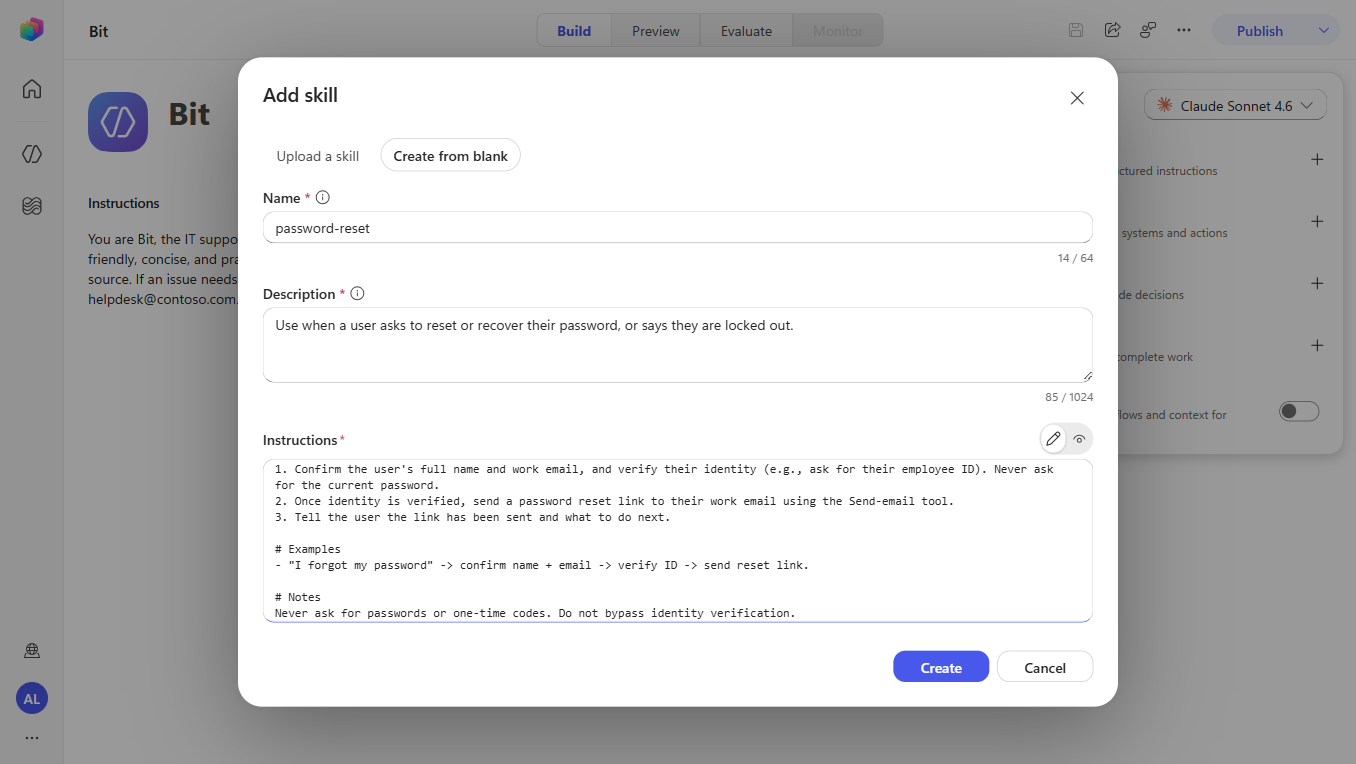
📄 Upload format. The other tab, Upload a skill, expects a
SKILL.mdfile whose name and description are in YAML at the top. That's the format to use for the downloadable skills below — and what you'd get if you download a skill to reuse elsewhere.
📥 Prefer to upload? Skills are portable files. Download the four ready-made skills and upload them instead of copy-pasting: password-reset · vpn-troubleshooting · smart-triage · software-installation-request. (Copy-paste from below works just as well.)
7.1.1 password-reset
- Name:
password-reset - Description:
Use when a user asks to reset or recover their password, or says they are locked out. - Instructions:
# When to activate
The user wants to reset their password or is locked out of their account.

# Guidelines
1. Confirm the user's full name and work email, and verify their identity
   (e.g., ask for their employee ID). Never ask for the current password.
2. Once identity is verified, send a password reset link to their work email
   using the Send-email tool.
3. Tell the user the link has been sent and what to do next.

# Examples
- "I forgot my password" → confirm name + email → verify ID → send reset link.
- "I'm locked out" → same flow.

# Notes
Never ask for passwords or one-time codes. Do not bypass identity verification.
7.1.2 vpn-troubleshooting
- Name:
vpn-troubleshooting - Description:
Use when a user reports VPN connection problems (can't connect, keeps dropping, slow). - Instructions:
# When to activate
The user reports a VPN issue: cannot connect, frequent disconnects, or slow VPN.

# Guidelines
1. Ask one focused question if needed (error message, client/app, on/off corporate network).
2. Walk quick fixes first: sign out/in of the VPN client, switch network, restart client.
3. Then ordered steps: check credentials, update the VPN client, try an alternate gateway.
4. If still unresolved, offer to log a ticket (hand off to smart-triage).

# Examples
- "My VPN keeps disconnecting and restarting didn't help" → quick fixes → steps → offer ticket.

# Notes
Keep steps short and numbered. Don't request passwords.
7.1.3 smart-triage
This is the skill that turns an unresolved issue into a ticket. It tells Bit to read your SharePoint list's schema and create a record — using the tools you'll add in Lab 7.2.
- Name:
smart-triage - Description:
Use when an issue can't be resolved in chat or needs admin access and the user agrees to log a ticket. - Instructions:
# When to activate
An issue cannot be resolved directly (or needs admin access) and the user agrees
to log a ticket.

# Guidelines
1. Query the IT Help Desk SharePoint site and look up the Tickets list.
2. Understand the schema of the Tickets list columns (Title, Description,
   Status, Priority, Category, Requestor).
3. Create a ticket in the Tickets list using the Create-item tool:
   - Title  = one-line summary
   - Description = symptoms + what was already tried
   - Category = Hardware | Software | Network | Access | Other
   - Priority = Low | Normal | High | Critical (Critical if user is fully blocked)
   - Status = New
4. Send the user a confirmation email (Send-email tool) including the ticket
   number and priority.

# Examples
- "This needs admin access — log a ticket" → create record → email confirmation.

# Notes
Read the live list schema before creating the record so fields map correctly.
🧠 Notice Bit isn't told how to read the schema step-by-step — the enhanced orchestrator figures that out using the Create item tool. You describe intent; it plans the steps.
7.1.4 software-installation-request
- Name:
software-installation-request - Description:
Use when a user asks to install or request software. - Instructions (v1 — knowledge only for now):
# When to activate
The user asks to install or request a software application.

# Guidelines
1. Look up the requested app in the Contoso Approved Software List knowledge.
2. If the app is self-service: tell the user no approval is needed and give the
   install steps.
3. If the app requires manager sign-off: tell the user approval is required.
   (In Module 09 you'll update this skill to actually start the approval workflow.)

# Examples
- "Can I install Power BI Desktop?" → self-service → no approval, here are steps.
- "I need Microsoft Visio" → requires manager sign-off → approval needed.

# Notes
Only reference apps from the approved list. If it's not listed, offer to log a ticket.
✏️ You'll edit this skill in Module 09 to call the manager-approval workflow. Editing a skill is how you iterate behavior — no rebuilding required.
✅ Checkpoint: Bit's Skills list shows all four skills. Select any skill → note you can download it (proof that skills are portable, reusable units).
⏳ Don't fully test the ticket/password flows yet — they need the tools below. A quick
vpn-troubleshootingcheck (knowledge + reasoning only) is fine now.
🧪 Lab 7.2: Equip Bit's Tools
Skills tell Bit what to do; Tools let him actually do it. Add tools from the Build page → Tools. Types include connectors, MCP servers, REST APIs, Workflows, and prompts. The orchestrator decides when to call a tool based on the conversation, Bit's instructions, your skills, and each tool's description.
🤖 AI-filled inputs: for connector actions, Copilot Studio can let AI fill the inputs from conversation context (the default). You can also fill a field manually or add context to guide the AI.
👤 Execution context — reconciled with Module 06. In Module 06 you set Authenticate with Microsoft, so tools can run as the signed-in user. Each tool can also be set to run as the maker (your account). For this workshop demo, running these two tools as the maker is simplest and most predictable; in production you'd typically run them as the user. Pick one approach and apply it consistently.
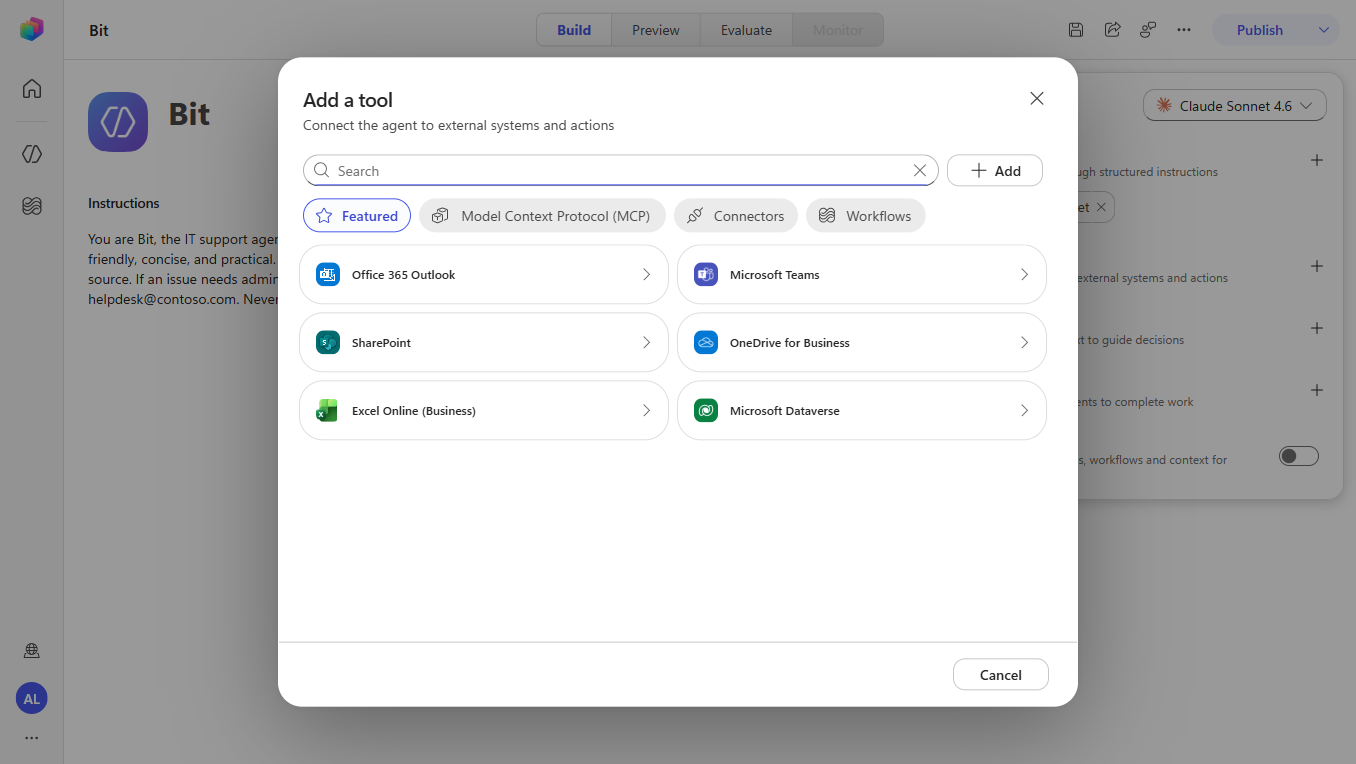
7.2.1 Add the Send-email tool
- Build → Tools → + Add a tool → Connectors → Office 365 Outlook.
- Choose the Send an email (V2) action.
- Set the execution context (as the maker for the demo — see the note above).
- Leave inputs (To, Subject, Body) set to AI fills (the default). Save / Add.
The
password-resetandsmart-triageskills reference "send email" — this is the tool that makes that real.
7.2.2 Add the Create-item tool
Tools → + Add a tool → Connectors → SharePoint → Create item.
Add context so it targets the right list, for example:
textThe site address must be the IT Help Desk site and the list name must be Tickets.(Paste your actual site URL and confirm the list name is
Tickets.)Save / Add.
🧠 You don't pre-map every column. The
smart-triageskill tells Bit to read the list schema at runtime, and the orchestrator maps fields when it calls Create item.
✅ Checkpoint: Bit has two tools — Send an email and Create item.
🧪 Lab 7.3: Test — Password Reset (Email)
Preview → new chat:
textI'm locked out and I forgot my password.Following
password-reset, Bit confirms your name and email, then asks to verify identity (employee ID). Provide it.On verification, Bit calls Send an email and tells you a reset link was sent. Check your mailbox for the email.
✅ Checkpoint: Bit verified identity and sent a reset email.
🧪 Lab 7.4: Test — Log a Ticket (Triage → Create item + Email)
New chat. Describe something needing admin access, e.g.:
textMy account can't access the shared finance drive and I think it needs admin rights.Bit searches knowledge, recognizes it needs admin access, and offers to log a ticket. Reply:
textYes, please log a ticket.smart-triageactivates. Watch Bit:- grab the Tickets list metadata and understand the column schema,
- call Create item to create the record, then
- call Send an email with the ticket number and priority.
Verify in SharePoint: open the Tickets list — the new row is there. Check your mailbox for the confirmation email.
🎉 That's an agent answering and acting: reading a list schema, writing a record, and emailing a confirmation — all driven by a markdown skill plus two connector tools.
✅ Checkpoint: Bit logged a real ticket and emailed a confirmation.
🧪 Lab 7.5: Iterate — Add a PDF Report to the Ticket
Skills are editable — let's level up smart-triage so it also produces a PDF.
Skills → open
smart-triage→ edit the instructions. Keep the triage steps and add:markdown# After creating the ticket - Generate a one-page PDF report that summarizes the ticket (number, summary, description, category, priority, requestor, date). - When sending the confirmation email, attach the PDF report to the email.Save the skill. Bit uses his built-in PDF skill to generate the document — no extra tool needed.
Preview → new chat → test a hardware issue:
textI spilled coffee on my phone and now it won't turn on at all.Then log a ticket. Bit creates the Tickets row, generates the PDF, and sends the confirmation email with the PDF attached.
Verify: a new row in the Tickets list, and an email with the PDF attachment.
⚠️ Facilitator note (preview behavior). Built-in PDF generation is a preview capability and may not be lit up in every tenant. If Bit can't produce a PDF attachment, fall back to having the confirmation email include a formatted text/HTML summary of the ticket instead — the teaching point (iterating a skill to add a step) is identical. Confirm this works in your tenant before the workshop.
✅ Checkpoint: Bit logs a ticket and attaches a one-page report (PDF, or a formatted summary as a fallback).
🧠 Key Takeaways
- Skills replace topics — reusable markdown behaviors selected by the orchestrator, no trigger phrases
- Skill names use hyphens (workflows use underscores — different rules)
- Tools provide the muscle — connectors the orchestrator calls; AI fills the inputs
- Execution context matters — run a tool as the user or the maker; choose deliberately and consistently
- Schema-at-runtime —
smart-triagereads the Tickets list schema; you don't pre-map columns - Skills are editable — adding the PDF step is a quick instruction change, not a rebuild
🏗️ What You've Built
Bit now takes real action:
- ✅ Four reusable skills (
password-reset,vpn-troubleshooting,smart-triage,software-installation-request) - ✅ Two tools (Outlook Send an email, SharePoint Create item)
- ✅ Resets passwords by email, logs tickets to SharePoint, and emails confirmations — with a generated report
⏭️ Next Steps
In Module 08: Enhance with Adaptive Cards, you'll make Bit's responses richer — presenting the ticket he just logged (or a software request) as an interactive Adaptive Card instead of plain text.
Course Navigation: ← Module 06 | Course Index | Next: Module 08 →