💬 Module 03: Create a Declarative Agent for M365 Copilot
Codename: OPERATION SIDE CHANNEL
Time: 25 minutes
Scenario: Extending Microsoft 365 Copilot (a quick side-quest — not Bit)
🎯 Learning Objectives
By the end of this module, you will be able to:
- Explain what a declarative agent is and when to use one
- Create a declarative agent in the Microsoft 365 Copilot agent builder
- Add a knowledge source and write instructions
- Use your agent inside Microsoft 365 Copilot
🧭 Overview
Declarative agents are lightweight extensions for Microsoft 365 Copilot. They add domain-specific knowledge and instructions to the M365 Copilot chat experience without requiring users to leave their workflow.
In this module, you'll create a simple Contoso IT Support Assistant that lives inside Microsoft 365 Copilot.
🧭 This is a side-quest, not Bit. The agent you build here is a quick, throwaway demo of a different kind of agent (an M365 Copilot extension). You'll build Bit, your Contoso IT help desk buddy — the full custom agent this course centers on — starting in Module 06. This module is here so you understand the lightweight option before committing to the full build.
⚠️ Where declarative agents are built (read this first). Declarative agents are not created in Copilot Studio — the Agents page there only offers New Agent (the full custom agent) and New classic agent. Declarative agents are built in the Microsoft 365 Copilot agent builder (inside M365 Copilot itself). That's the path this lab uses.
🧰 Prerequisites
- Access to Microsoft 365 Copilot at m365.cloud.microsoft. The agent builder is available with Microsoft 365 Copilot Chat (even the Basic tier).
- Note on knowledge: on the Basic tier the agent grounds on public websites. Grounding a declarative agent on your SharePoint / Microsoft Graph data requires a full Microsoft 365 Copilot license.
🏫 In the facilitated workshop, you're signed in with a workshop account that already has M365 Copilot Chat. If you're following along at the office without M365 Copilot, you can still read through to understand the concepts, then continue to Module 04.
🧩 What Is a Declarative Agent?
A declarative agent is a specialized agent that:
- Extends M365 Copilot — it lives in the Microsoft 365 Copilot chat, listed under Agents
- Is low-code — you build it in the M365 Copilot agent builder with a simple form (no Copilot Studio Build page); under the hood it's defined by a manifest
- Adds custom knowledge — grounds responses in websites (or your org data with the right license)
- Has limited capabilities — searches knowledge and responds conversationally, but can't run skills, call tools, or trigger workflows
Declarative vs. Custom Agents
| Feature | Declarative Agent | Custom Agent (Bit) |
|---|---|---|
| Where it lives | Inside M365 Copilot chat | Standalone (Teams, web, M365) |
| How users reach it | Pick it under Agents (or @mention it) | Direct chat in Teams or website |
| Capabilities | Knowledge grounding + instructions | Full: Skills, Tools, Workflows, Memory, Adaptive Cards |
| Authoring | M365 Copilot agent builder | The new Build page in Copilot Studio |
| License requirement | M365 Copilot Chat (websites) / full M365 Copilot (org data) | Copilot Studio (or trial) |
| Best for | Extending M365 Copilot with domain knowledge | Standalone agents with actions and workflows |
When to Use Declarative Agents
Use a declarative agent when:
- Your users already work in Microsoft 365 Copilot
- You want to add domain-specific knowledge (e.g., HR policies, product docs, support content)
- The use case is simple Q&A — no actions, approvals, or multi-step processes
Example scenarios:
- HR Policy Agent — answers questions about benefits and leave
- Product Docs Agent — answers from your product documentation site
- IT Support Assistant — answers common IT questions (what you'll build here)
🧪 Lab 3.1: Create the Agent in the M365 Copilot Agent Builder
Objective: Build a declarative Contoso IT Support Assistant that lives in Microsoft 365 Copilot.
Step 1: Open the Agent Builder
- Go to https://m365.cloud.microsoft and open Copilot (Microsoft 365 Copilot).
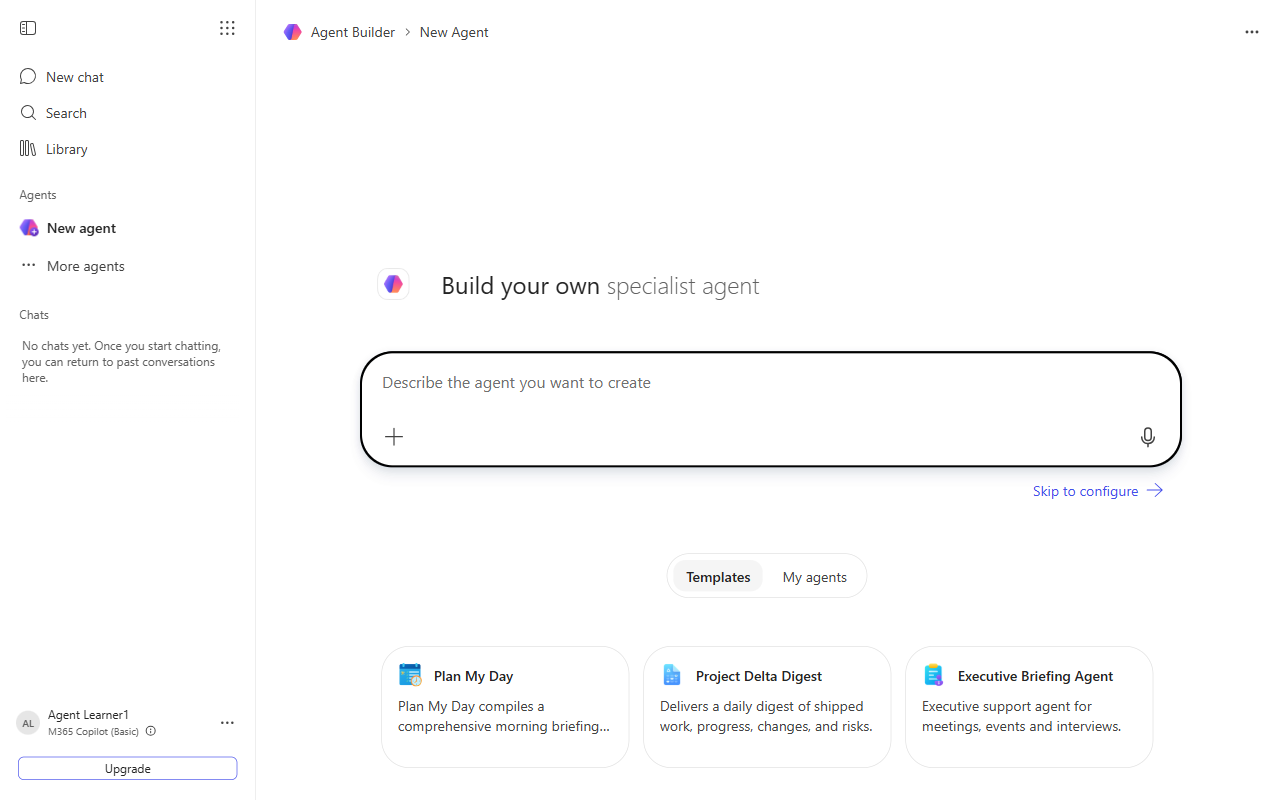
- In the left navigation, under Agents, select New agent. The Agent Builder opens.
- You'll see "Build your own specialist agent" with a description box. You can describe your agent in natural language — or select Skip to configure to fill the details in yourself.
Step 2: Configure the Agent
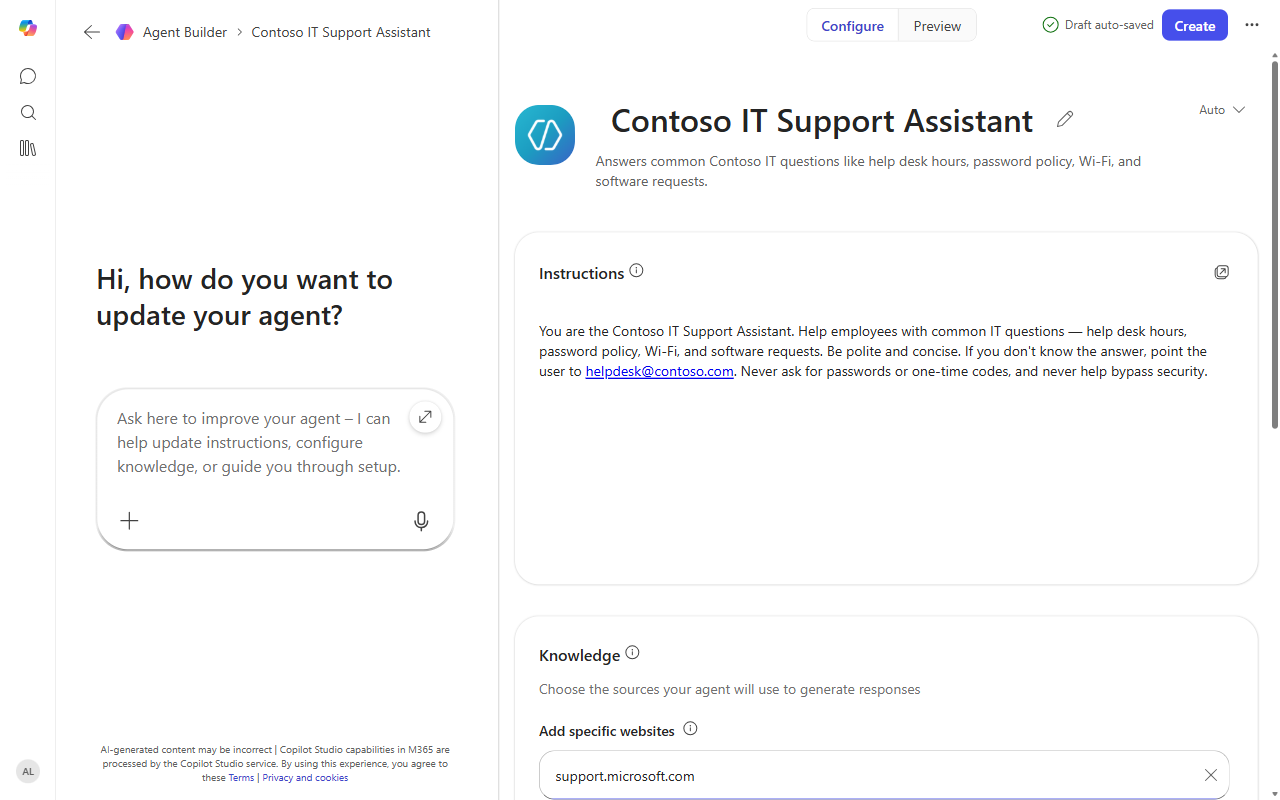
Select Skip to configure and fill in:
- Name:
Contoso IT Support Assistant - Description:
Answers common Contoso IT questions like help desk hours, password policy, Wi-Fi, and software requests. - Instructions:
You are the Contoso IT Support Assistant. Help employees with common IT questions —
help desk hours, password policy, Wi-Fi, and software requests. Be polite and concise.
If you don't know the answer, point the user to helpdesk@contoso.com. Never ask for
passwords or one-time codes, and never help bypass security.- Knowledge → Add specific websites: enter a support site to ground the agent, e.g.
support.microsoft.com.
💡 Knowledge note. On M365 Copilot Basic, the agent grounds on websites. With a full Microsoft 365 Copilot license you could instead point it at your IT Help Desk SharePoint site (and the Contoso IT FAQ) for org-specific answers like the exact help desk hours.
Step 3: Create the Agent
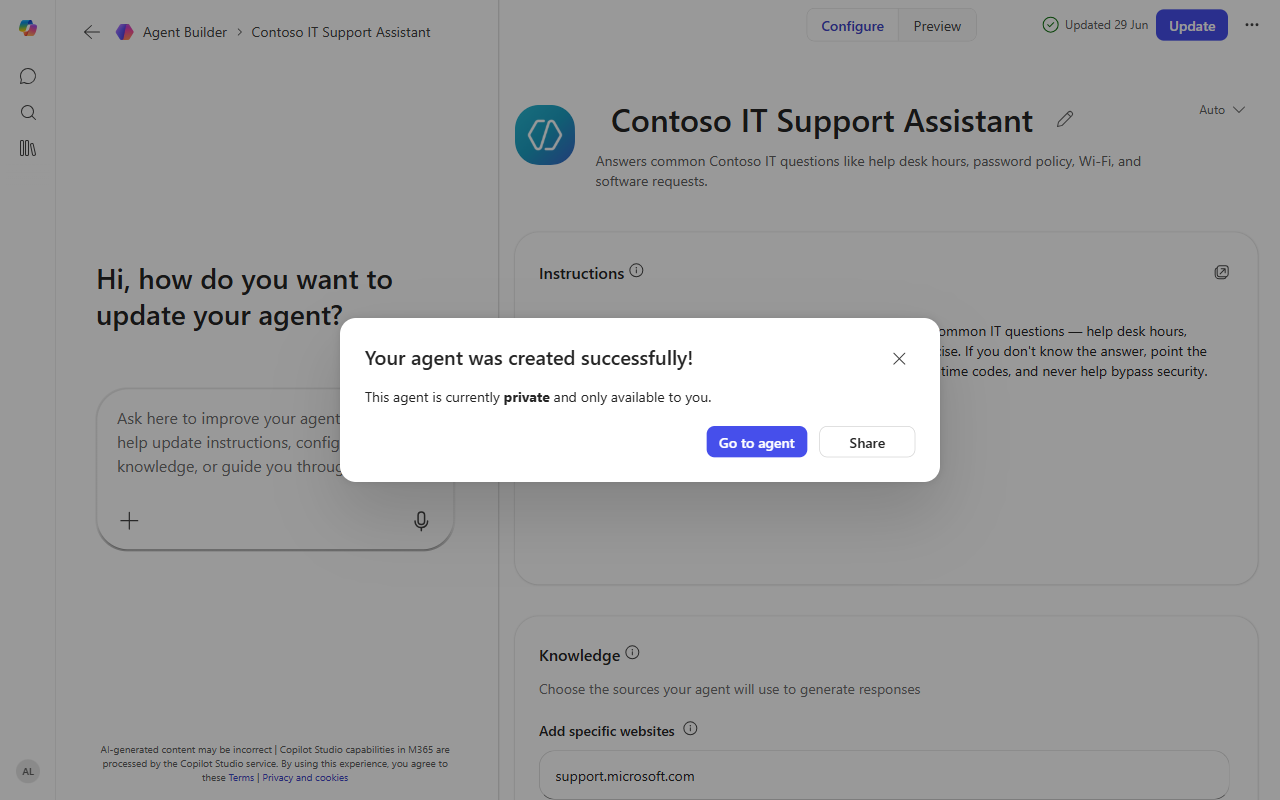
- Select Create (top right).
- You'll see "Your agent was created successfully!" — note it's private and only available to you until you share it.
✅ Checkpoint: Your declarative agent exists and is available in Microsoft 365 Copilot.
🧪 Lab 3.2: Use the Agent in M365 Copilot
Objective: Chat with your declarative agent inside Microsoft 365 Copilot.
Step 1: Open the Agent
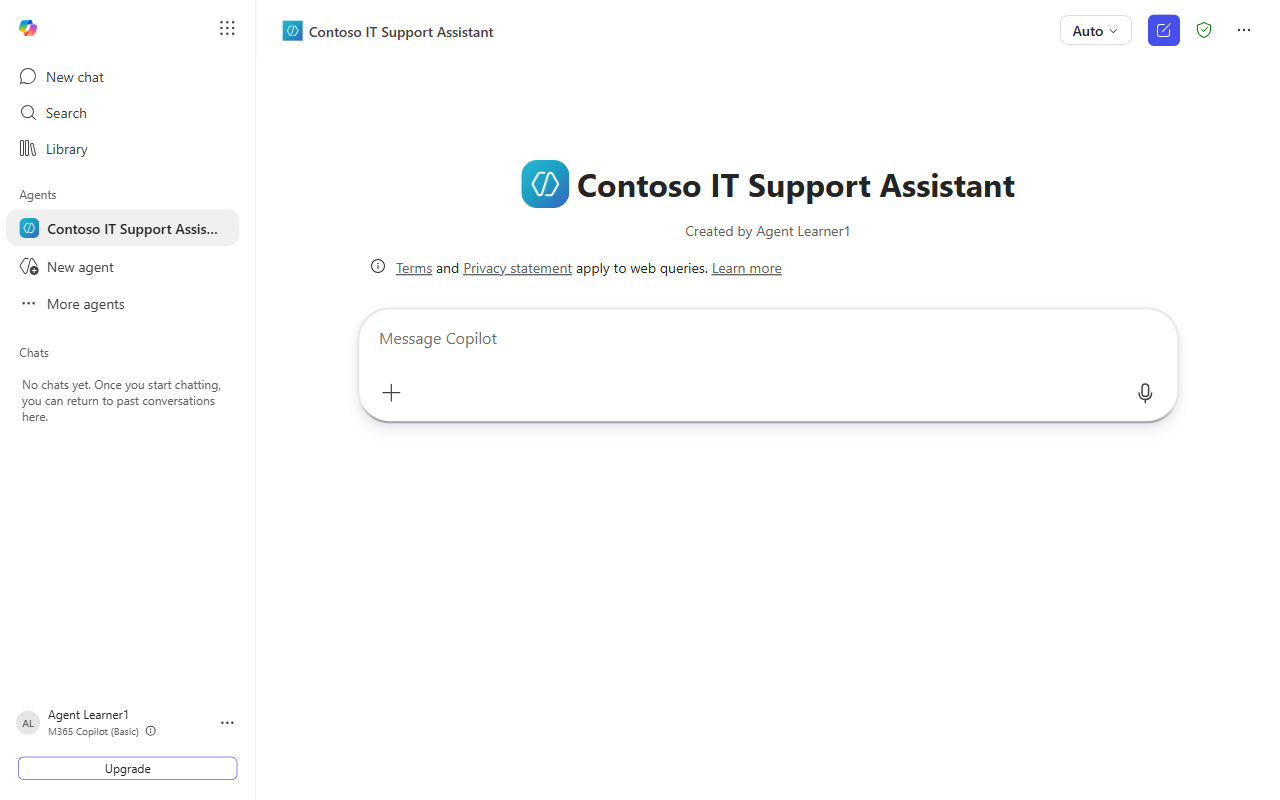
- From the success dialog, select Go to agent (or find Contoso IT Support Assistant under Agents in the left nav).
- The agent opens its own chat in M365 Copilot, showing its name and "Created by you".
💬 @mention, too. Because it lives in M365 Copilot, you can also
@mentionthe agent from the main Copilot chat (type@and pick it from the list) — handy when you're mid-conversation and want to pull it in.
Step 2: Ask a Question
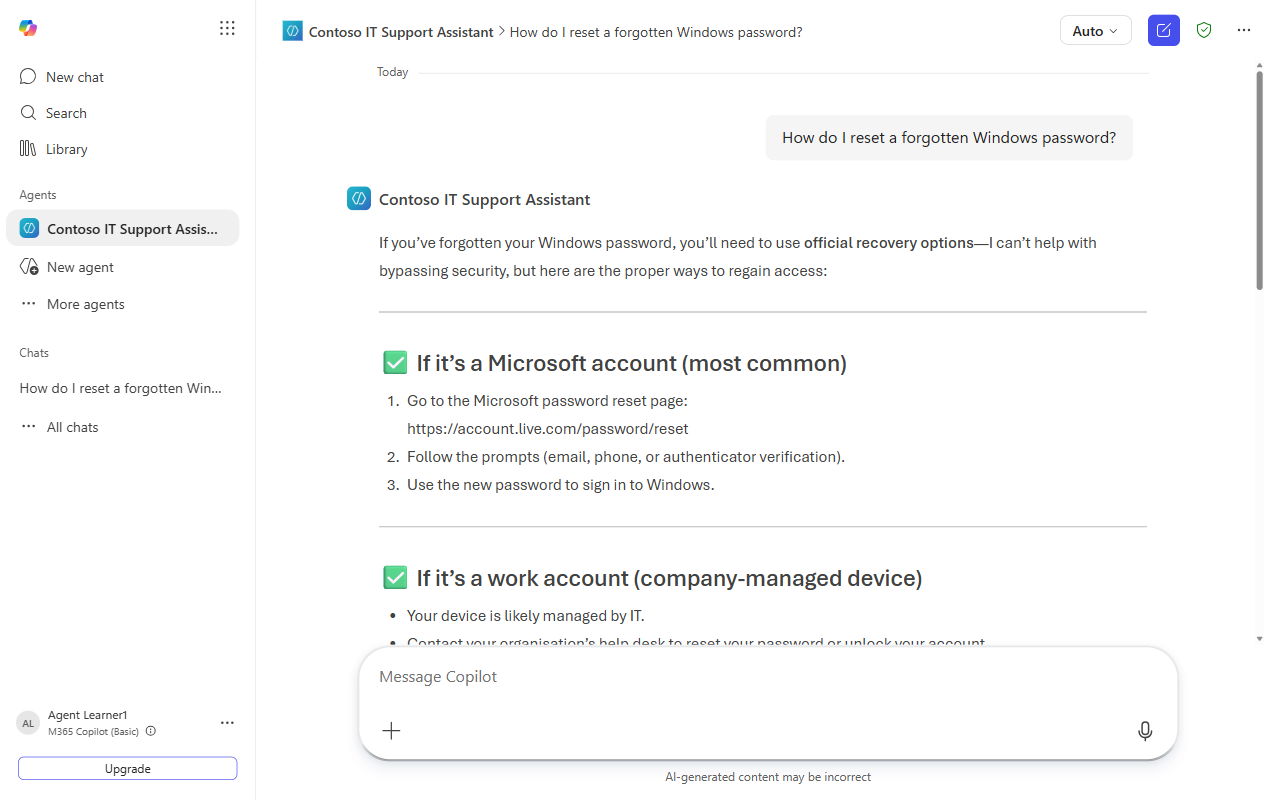
Type a question the support site can answer, for example:
How do I reset a forgotten Windows password?The agent responds with grounded, step-by-step guidance — and follows its instructions: it refuses to help bypass security and points to the proper recovery options.
Step 3: Watch the Guardrails
Notice the response opens with "I can't help with bypassing security, but here are the proper ways…" — that's the instruction you wrote doing its job. Try an out-of-scope question and watch it stay on task or defer to helpdesk@contoso.com.
✅ Checkpoint: Your declarative agent answers grounded questions inside M365 Copilot and respects its guardrails.
⚙️ How Declarative Agents Work
A declarative agent is defined by a manifest that specifies its name, description, instructions, and knowledge sources. When you chat with it (or @mention it):
- M365 Copilot routes the message to your declarative agent
- The agent searches its configured knowledge (e.g., the support site)
- It generates a response grounded in the retrieved content, following your instructions
- The response appears in the M365 Copilot chat
Key difference from custom agents: declarative agents run inside M365 Copilot's interface — they don't have the Copilot Studio Build page, Skills, Tools, or Workflows.
🚧 Limitations of Declarative Agents
Declarative agents are intentionally simple. They cannot:
- Author Skills (no markdown behaviors)
- Call Tools or connectors (no actions, no API calls)
- Run Workflows (no approvals or multi-step automation)
- Display Adaptive Cards
- Live outside Microsoft 365 Copilot
If you need these capabilities, build a custom agent instead — which is exactly what you'll do when you build Bit starting in Module 06.
🤔 When to Use Declarative vs. Custom Agents
Do your users work in Microsoft 365 Copilot?
├─ Yes → Is the use case simple Q&A with knowledge grounding?
│         ├─ Yes → Build a declarative agent (M365 Copilot agent builder)
│         └─ No (need skills, tools, workflows) → Build a custom agent (Copilot Studio)
└─ No → Build a custom agent and publish to Teams or web
Example mapping:
| Use Case | Agent Type |
|---|---|
| HR policy Q&A for M365 users | Declarative |
| IT helpdesk that logs tickets and runs approvals (Bit) | Custom |
| Product docs Q&A for M365 users | Declarative |
| Customer support chatbot on a public website | Custom |
| Autonomous ticket-escalation agent | Custom (event-triggered) |
🧠 Key Takeaways
- Declarative agents extend M365 Copilot with custom knowledge and instructions
- Built in the M365 Copilot agent builder — not in Copilot Studio (which only makes custom/classic agents)
- Simple Q&A use cases — no skills, tools, or workflows
- Grounded in knowledge — websites on Basic; SharePoint / Graph with a full M365 Copilot license
- Instructions are the guardrails — ours kept the agent from helping bypass security
⏭️ Next Steps
Now that you've seen the lightweight option, you'll shift focus to custom agents — the full-featured agents that give you Skills, Tools, Workflows, and multiple publishing channels.
But first, in Module 04: Creating a Solution, you'll set up proper solution packaging so all your work is organized, version-controlled, and ready for ALM (Application Lifecycle Management).
Course Navigation: ← Module 02 | Course Index | Next: Module 04 →